
Download Clean Text – Advanced Text Formatter for Designers and Developers
Overview
Clean Text is a modern productivity app built specifically for designers, developers, and anyone who spends a lot of time shaping copy for digital products. In a world where design systems, component libraries, and code‑first workflows dominate, inconsistent typography can become a silent killer of brand cohesion and developer efficiency. Clean Text tackles that problem head‑on by providing a fast, reliable, and intelligent way to standardise text formatting across any input source—whether you paste raw copy from a Word document, pull strings from a JSON file, or type directly into the app’s editor.
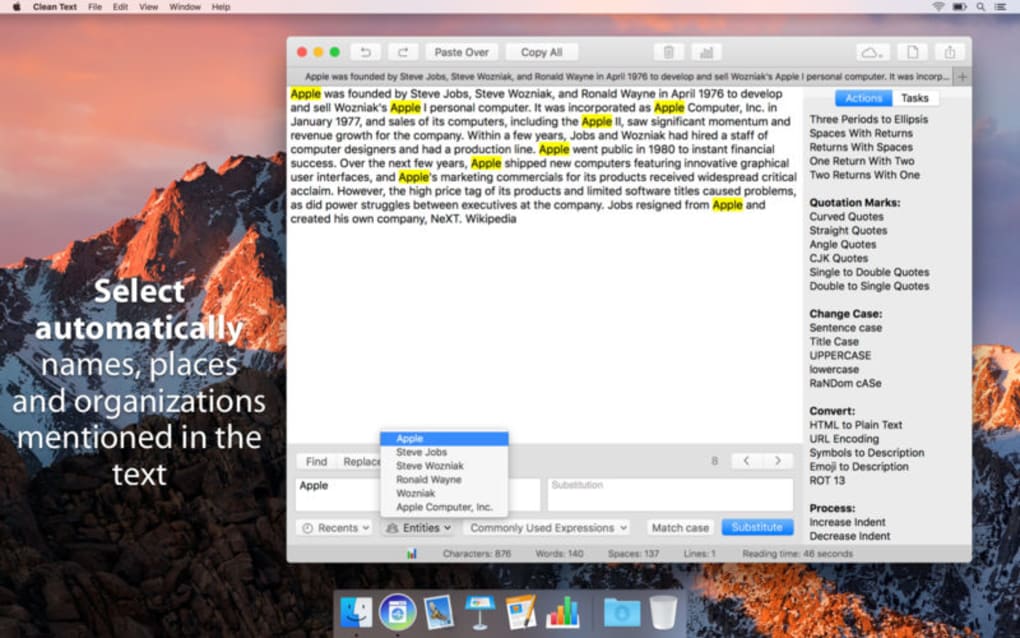
What sets Clean Text apart from a generic find‑and‑replace tool is its deep integration of machine‑learning algorithms that can recognise proper nouns, dates, and even custom tokens that you define in your style guide.
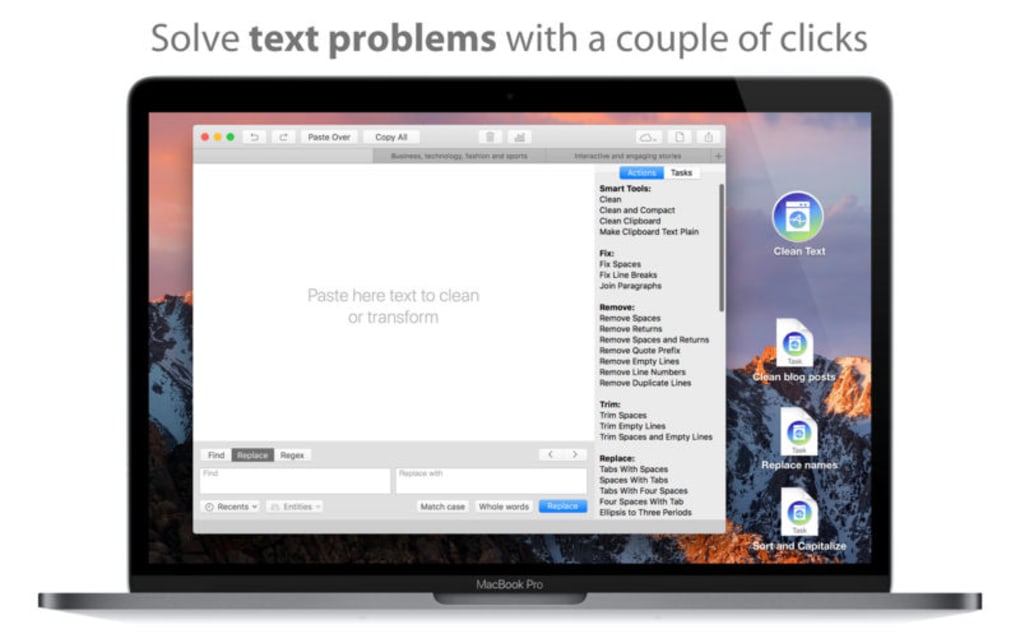
Once identified, the app can automatically apply the correct case, spacing, punctuation, or even convert strings to camelCase, snake_case, or kebab‑case with a single click. Advanced users also benefit from a built‑in task‑automation creator that lets you string together multiple formatting actions into reusable workflows—think of it as a lightweight macro recorder for text.
The user interface follows a clean, minimalist aesthetic that mirrors the app’s purpose: to keep your text clean. Dark and light themes are available, and the UI is fully responsive, making it comfortable to use on a desktop monitor, a laptop trackpad, or even a tablet with a stylus.
Security‑focused users will appreciate that Clean Text processes all data locally; no text is ever uploaded to the cloud unless you explicitly enable the optional cloud‑sync feature for cross‑device continuity.
In short, Clean Text is more than just a formatter; it is a productivity hub that reduces manual editing time, eliminates human error, and enforces brand consistency across design and development pipelines. Whether you’re a freelance UI/UX designer polishing copy for a client, a front‑end engineer preparing localisation strings, or a content strategist managing large content inventories, Clean Text offers a scalable solution that grows with your workflow.
Key Features
- Smart Text Recognition: AI‑driven detection of names, dates, acronyms, and custom tokens to ensure proper casing and punctuation.
- Multiple Case Conversions: One‑click conversion to Uppercase, lowercase, Title Case, camelCase, snake_case, kebab‑case, and PascalCase.
- Task Automation Builder: Drag‑and‑drop workflow creator that lets you chain formatting actions, save them as presets, and trigger them with hotkeys.
- Batch Processing: Import CSV, JSON, or plain‑text files and apply formatting rules to thousands of lines in seconds.
- Style‑Guide Integration: Load your brand’s style guide JSON to enforce custom rules such as trademark symbols, product name capitalization, and localized date formats.
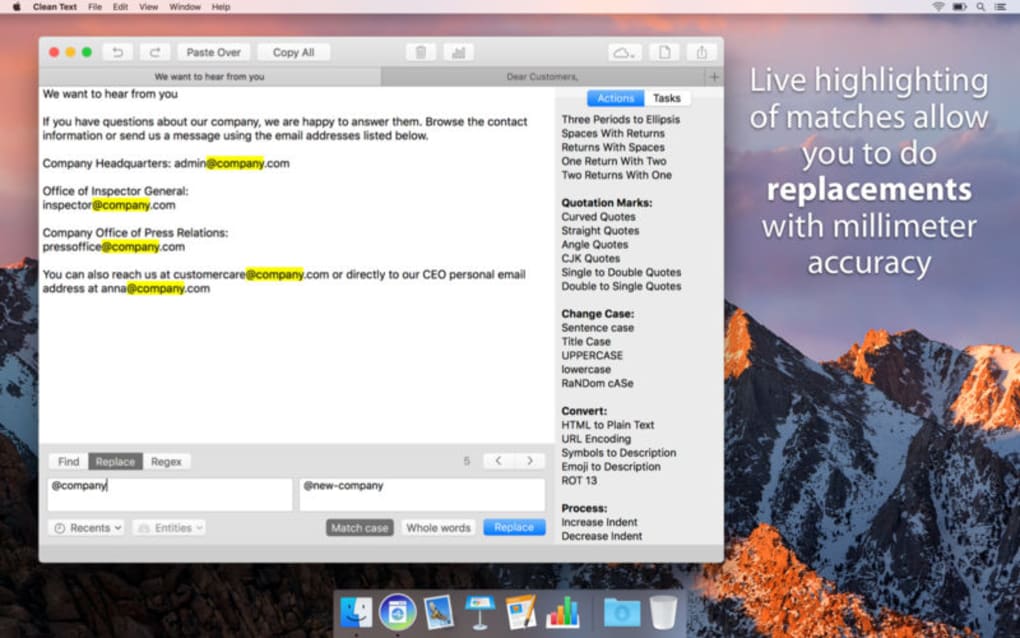
- Real‑Time Preview: See formatted output instantly as you type or edit, with colour‑coded highlights for changes.
- Cross‑Platform Sync (Optional): Secure cloud sync via end‑to‑end encryption for seamless use on Windows, macOS, Android, and iOS.
- Extensible Plugin System: Community‑driven plugins for additional languages, regex shortcuts, and integration with popular IDEs like VS Code.
- Dark & Light Themes: Adaptive UI that respects system‑wide theme settings and reduces eye strain during long sessions.
- Export Options: Export cleaned text as plain text, markdown, HTML snippets, or directly copy to clipboard.
Installation & Usage Guide
Getting started with Clean Text is intentionally straightforward. The app is distributed as a single installer for each major operating system, and the download process is secured with SHA‑256 checksum verification to guarantee integrity.
Step 1 – Download: Visit the official Clean Text website and click the “Download for Windows” (or macOS, Android, iOS) button. The installer size is under 45 MB, making it quick even on slower connections.
Step 2 – Install: On Windows, run the .exe file and follow the wizard prompts. macOS users will mount the .dmg and drag the app to the Applications folder.
Mobile platforms use the standard app store process, ensuring automatic updates and sandboxed permissions.
Step 3 – Initial Setup: Upon first launch, Clean Text walks you through a brief onboarding tour. You’ll be asked to choose a default theme, set a preferred language, and optionally import an existing style‑guide JSON file. If you enable cloud sync, you’ll be prompted to create a secure account protected by two‑factor authentication.
Step 4 – Formatting a Document: Paste any raw text into the main editor pane.
The AI engine immediately begins analysing the content, underlining detected entities in a subtle blue hue. Use the toolbar on the right to select a case conversion, apply a preset workflow, or open the automation builder.
Step 5 – Batch Processing: Click the “Batch Mode” icon to open a file selector. Choose a CSV or JSON file containing a list of strings.
In the batch window, map each column to a formatting rule (e.g., “Title Case” for product names, “snake_case” for API keys). Press “Run” and watch the progress bar as Clean Text processes the entire dataset. Results can be exported back to the original file format or saved as a new file.
Step 6 – Automation Presets: If you find yourself repeatedly applying the same series of actions (e.g., trim whitespace → Title Case → add trademark symbol), create a preset by clicking “Save as Preset” in the automation builder.
Assign a keyboard shortcut for instant access across all projects.
Step 7 – Integration with IDEs: For developers, install the Clean Text VS Code extension from the marketplace. The extension adds a “Format with Clean Text” command to the context menu, allowing you to clean localisation strings directly inside your codebase.
Throughout the usage experience, Clean Text offers contextual tooltips and a searchable help centre. The app also logs all actions in a non‑intrusive history panel, so you can undo or redo any step without losing your original content.
This transparency makes it safe for both beginners and power users alike.
Supported Operating Systems: Windows 10/11, macOS 11+ (Catalina and later), Android 9+, iOS 13+.
Pros and Cons
Pros
- AI‑driven text recognition reduces manual editing time dramatically.
- Comprehensive case‑conversion options cover almost every developer and designer need.
- Task automation builder empowers users to create reusable workflows without coding.
- Batch processing handles large datasets efficiently, ideal for localisation projects.
- Optional end‑to‑end encrypted cloud sync keeps your settings consistent across devices.
- Lightweight installation (under 45 MB) and fast startup.
- Extensible plugin ecosystem encourages community contributions.
- Full offline mode guarantees data privacy for sensitive copy.
Cons
- Advanced automation features have a learning curve for non‑technical users.
- While cloud sync is optional, it requires a separate account creation.
- Mobile versions lack the full batch‑processing UI available on desktop.
- Some niche language rules may need custom plugin development.
- Free tier limits the number of saved automation presets.
Frequently Asked Questions
Is Clean Text completely offline, or does it send data to the cloud?
By default all processing happens locally on your device. The optional cloud‑sync feature is disabled unless you explicitly enable it, and when used it employs end‑to‑end encryption so no raw text ever leaves your device.
Can Clean Text handle multilingual content?
Yes. The AI engine includes language detection and supports case conversion for over 30 languages. You can also import language‑specific style‑guide JSON files to enforce locale‑aware formatting.
What is the price model for Clean Text?
Clean Text offers a free tier with core formatting tools and limited automation presets. A Pro subscription ($9.99 USD/month or $99 USD/year) unlocks unlimited presets, advanced batch processing, priority AI updates, and premium support.
Does Clean Text integrate with version control systems like Git?
Through its VS Code extension, Clean Text can be triggered as a pre‑commit hook, ensuring that any text files added to a repository are automatically cleaned before they are committed.
How often are updates released, and are they automatic?
Updates are released monthly for the AI models and quarterly for UI improvements. Desktop versions prompt you to download the latest installer, while mobile apps receive updates automatically through the respective app stores.
Conclusion & How to Get Clean Text
In a landscape where design consistency and development efficiency are paramount, Clean Text delivers a powerful yet approachable solution for text standardisation. Its blend of AI‑enhanced recognition, extensive case‑conversion capabilities, and a flexible automation builder makes it a standout tool for both creative and technical teams. While there is a modest learning curve for the most advanced features, the free tier provides enough functionality for casual users to experience immediate time savings.
If you’re ready to eliminate tedious copy‑editing tasks and enforce brand‑aligned typography across every project, download Clean Text today. The installer is available for Windows, macOS, Android, and iOS, and the free version lets you explore the core features without commitment. For power users who need unlimited presets, batch processing, and priority support, consider upgrading to the Pro plan after the trial period.
Click here to download Clean Text now and start cleaning your text with confidence.
Overall Rating: 4.6/5
Pros: AI accuracy, robust automation, offline security.
Cons: Mobile UI limitations, learning curve for complex workflows.







